Ask anyone who has spent a few years collecting reference images, screenshots and downloads what the hard part is, and it is never the collecting. It is opening a folder of four thousand files named IMG_4821 and Screenshot 2026-03-11, with no memory of which one is the picture you need. Saving it was instant. Finding it again, months later, is the part nobody designed for. Muse is a $29 one-time Mac app that does this on device: describe what you remember seeing and it returns matching images from your own library, with the model running on your Mac rather than in somebody's cloud.
A Mac can already do more of this than most people realise, and less than a designer or researcher needs. Here is what Apple Photos, Spotlight and Visual Look Up do, where each one stops, and what a dedicated library adds once you are past what they can reach.
Can Apple Photos already search images by what they look like?
Yes, and this one catches people out because it looks like a party trick. Open Photos, click into the search field, and type an ordinary word: dog, beach, birthday cake. Nobody told Photos which pictures show a dog. It worked that out itself, on the device, by analysing the picture the same way it recognises a face. Apple documents the feature plainly in its own guide to searching photos and videos on Mac.
On a Mac that supports Apple Intelligence, the same search box goes further. Instead of a single keyword you can describe a moment in a full sentence, something closer to Maya skateboarding in a tie-dye shirt than beach, and Photos matches the description against what it can see in the picture rather than any caption. It is a genuine improvement on the older keyword search, not a rebrand of it.
- Open Photos and click into the search field at the top of the window.
- Type what you remember, a single word, or a fuller description if Apple Intelligence is available on your Mac.
- Check the suggested categories Photos offers as you type. They often narrow the results faster than finishing your own sentence.
There is a second, separate feature worth knowing about: Visual Look Up. Open a photo, tap the small information button, and Photos tries to identify what is in front of you: a plant, a breed of dog, a landmark, a piece of art. It is not a search tool. It only works on a photo you already have open, one at a time, and it answers what is this rather than where is the one that looks like this. Useful, but a different job.
Screenshot
Muse's search box with a description typed in, and the pictures that come back.

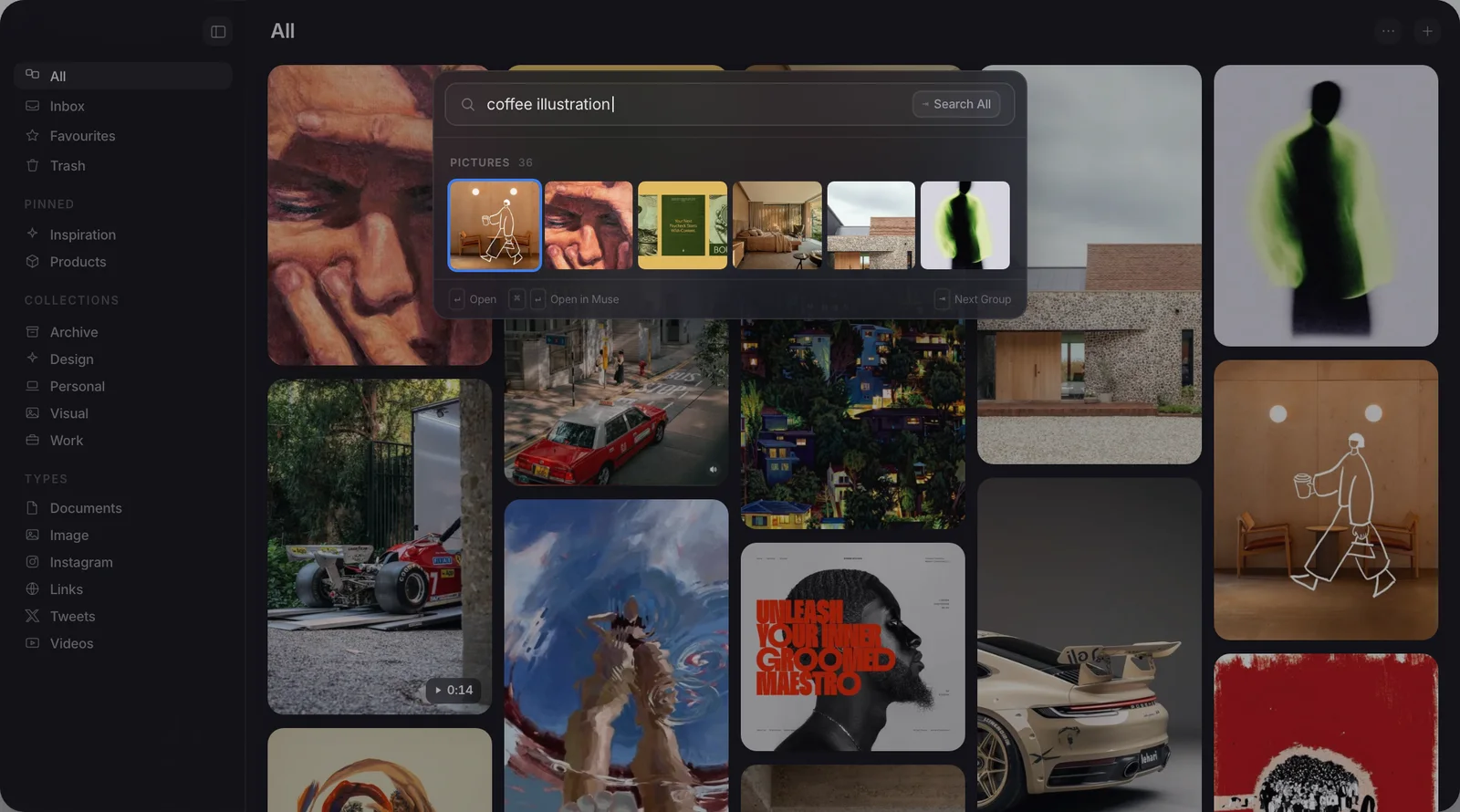
- 1The search box, with the words typed in
- 2The row of pictures that comes back
Where that stops working
Photos content search only reaches what is inside your Photos library. If an image was imported, synced from your phone, or dragged in on purpose, Photos can search it. If it is sitting in a Downloads folder, a project folder on your Desktop, or anywhere else in Finder, Photos has never seen it and cannot search it. That limit matters more than it sounds, because a Photos library is built around a personal camera roll, not the loose folders of reference material a designer, architect or researcher collects: moodboard screenshots, competitor shots, saved product photography, none of it destined for anyone's camera roll.
Spotlight covers a different gap, and it is worth being precise about what it does. A Mac can search text inside an image file wherever that file lives, Finder folder included. macOS has read text out of ordinary pictures with Live Text since 2021 and fed it straight into the Spotlight index, so typing a word from an invoice or a poster into a Finder search set to Content Contains can surface it. What Spotlight cannot do is the by-look search Photos does. It matches text painted onto a picture, not the subject of the picture itself. A photo of a beach with no writing on it will never come up if you search beach in Spotlight, because there is no text there to read.
Photos searches by look, but only inside its own library. Spotlight searches loose files everywhere, but only for words written on the image. Neither one covers a loose file you want to find by what it shows.
The three ways any library can find an image
Once you get past Photos and Spotlight, every image search, in Muse or anywhere else, is really doing one of three different jobs.
The first is words attached to the image: a filename, a tag, a keyword typed in by a person or added automatically. It is the oldest method and the least forgiving, because it only ever finds what someone bothered to label, and almost nobody labels four years of screenshots.
The second is words inside the image, the same job Live Text and Spotlight do: reading text that is painted onto the picture and matching your search against it. It is reliable for invoices, receipts, posters and screenshots of anything with writing on it. It has nothing to offer a photo with no text in it at all.
What does searching by meaning match?
The third job is the one people mean when they say they want to search by what an image looks like, and it works differently from the other two. Meaning-based search does not read any words at all, attached or painted on. It looks at the picture itself and works out what it is a photo of, a beach, a quiet room, a particular mood or colour palette, then compares that against the words in your search. Type quiet interior with warm light and it can return a picture that was never labelled with any of those words, because the match is on the substance of the image, not on any tag anyone attached to it.
This is what Apple Intelligence's natural language search is doing inside Photos, and it is what Muse does across everything you have saved, not just camera roll photos. In Muse it is optional rather than always on: it lives in the Pro AI pack, a one-click download you choose whether to install. Once it is there, the matching runs entirely on your own Mac. If you never install it, Muse still searches by the words attached to an item and the words inside it, the first two methods above. It simply will not match on meaning until you add the pack.
Is colour search worth using?
One more tool is worth naming, because it gets oversold. Muse, like a handful of other libraries, reads the dominant colours out of every image and lets you search or filter by colour: useful for the dark green thing you half remember, or a specific brand shade you are trying to match. It is real, and it is fast.
It is also narrower than it sounds. Colour search knows nothing about what a picture is of, only what shades it contains, so a forest and an unrelated green sweater can both turn up for the same search. A busy, multicoloured photograph will not hand you one clean colour to search on either. Treat it as a fourth tool alongside the other three, good for the specific job it does, not a replacement for search by meaning or by content.
Put together, that is the map. Apple Photos and Apple Intelligence cover anything already inside your camera roll. Spotlight covers text inside a loose file anywhere on the Mac. Words, text and meaning are the three separate jobs a dedicated library like Muse does across everything else you have saved, screenshots, downloads and reference folders included, with colour search sitting alongside as a narrower fourth option. Muse does all four on your Mac for $29 once. The other tools that index a collection this way, and what each costs, are compared in mymind alternatives for Mac.
Frequently asked
Can Apple Photos search images by what they look like?
Why can't Photos find an image sitting in a Finder folder?
Does macOS search text inside images?
What does Muse need to search images by meaning?
One search box, every way of finding it
Free for 14 days. Then $29 once, and it is yours.